


If you run a coffee shop, an Airbnb, or even just host a lot of dinner parties, you already know the most frequently asked question on the planet:
“Hey, what’s the WiFi password?”
What follows is usually a frustrating dance. You hand them a piece of paper or point to a chalkboard. They type in a long string of characters, accidentally mistake a capital “I” for a lowercase “l” or a zero for an “O,” and have to start all over again.
In 2026, forcing your guests or customers to manually type a password is a terrible user experience. The ultimate solution is a WiFi QR Code. A guest simply points their smartphone camera at the code, a little prompt drops down that says “Join Network,” and boom—they are connected instantly.
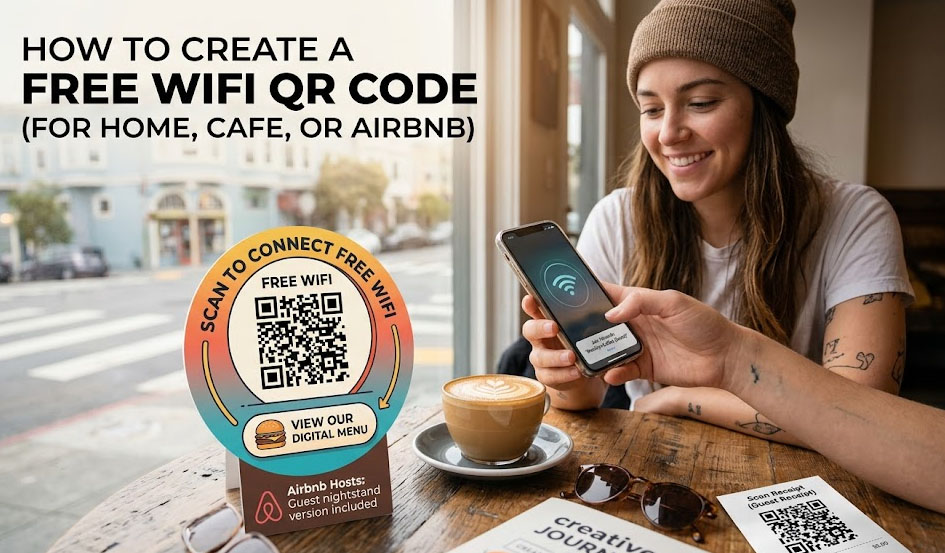
Here is exactly how to create a free qr code for wifi, why it keeps your network more secure, and a pro-level trick for local businesses.
How a WiFi QR Code Actually Works
Unlike a standard QR code that sends someone to a website, a WiFi QR code uses a specific string of code recognized by both iOS and Android operating systems.
When you generate it, the QR code bundles three pieces of information together invisibly:
- SSID (Network Name): The exact name of your WiFi.
- Password: The security key.
- Encryption Type: Usually WPA/WPA2 (the standard for modern routers).
Because the phone’s operating system reads this data directly, the user never actually sees the password typed out on their screen. They just hit “Join.”
The Hidden Security Benefit for Businesses
Let’s say you run a bustling cafe in Seattle. If you write your WiFi password on a giant chalkboard, anyone walking past the window can see it, connect to your network, and hog your bandwidth without ever buying a cup of coffee.
By using a WiFi QR code placed on small table tents or printed at the bottom of customer receipts, you restrict access only to paying customers who are physically sitting inside your establishment. Plus, if you ever need to change your router’s password for security reasons, you don’t have to reprint menus—you just generate a new code.
How to Generate Your Free WiFi QR Code in 3 Steps
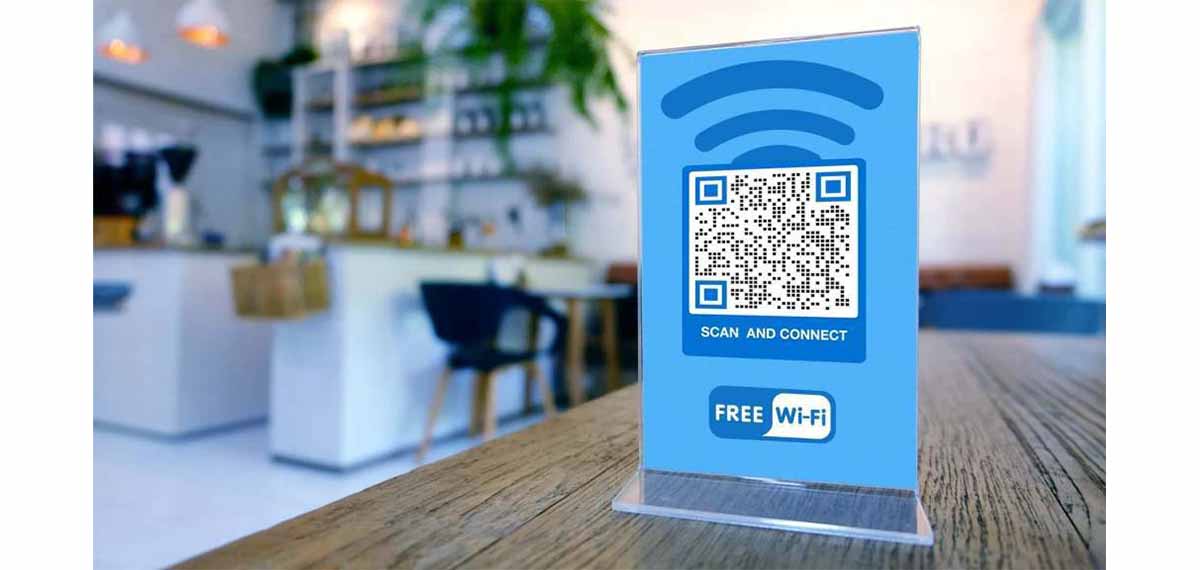
Creating your code takes less than 30 seconds. You don’t need any technical skills.
- Find your exact Network Details: You need your network name (SSID) and password. Note: They must be perfectly case-sensitive. “MyCafe” is different from “mycafe”.
- Enter the Data into a Generator: Go to a free tool like MakeDynamicQR and select the “WiFi” option. Type in your Network Name, select WPA/WPA2, and enter your password.
- Customize and Download: Add a call-to-action frame around it that says “Scan for Free WiFi.” Download the image and print it for your guest room nightstand or store counter.
Pro-Tip for Restaurants and Airbnbs: The “Menu + WiFi” Combo
If you are a business owner, a standard static WiFi code is great, but you are leaving money on the table.
Instead of just giving them internet access and walking away, use a Dynamic QR Code to send them to a mobile-friendly landing page (like a Linktree).
When they scan the code on their table, they land on a branded page with three big buttons:
- 📶 Connect to Free WiFi (Using the WiFi link protocol)
- 🍔 View Our Digital Menu
- ⭐ Leave us a 5-Star Review on Google
This transforms a simple customer service courtesy (free WiFi) into a powerful marketing asset that drives sales and boosts your local SEO rankings.
Stop Paying for Basic Utilities
Many QR code platforms will try to charge you a monthly fee just to host a WiFi code. Do not fall for this. A standard qr code for wifi does not require ongoing server maintenance, and you should never pay a subscription for it.
At MakeDynamicQR, our tool allows you to create customized, high-resolution WiFi QR codes entirely for free. No scan limits, no watermarks, and no credit card required.