


Let’s paint a familiar picture. You just wrapped up a 3-day corporate training seminar in Chicago. You put a slide up on the projector asking the 200 attendees to fill out a feedback survey.
The link on the screen looks something like this: docs.google.com/forms/d/e/1FAIpQLS…
Nobody—absolutely nobody—is going to manually type a 60-character string of random letters into their smartphone browser. You will be lucky to get a 5% response rate. To get real data, you have to eliminate the friction. You need a qr code for google form surveys so your audience can simply point their camera, tap, and start answering.
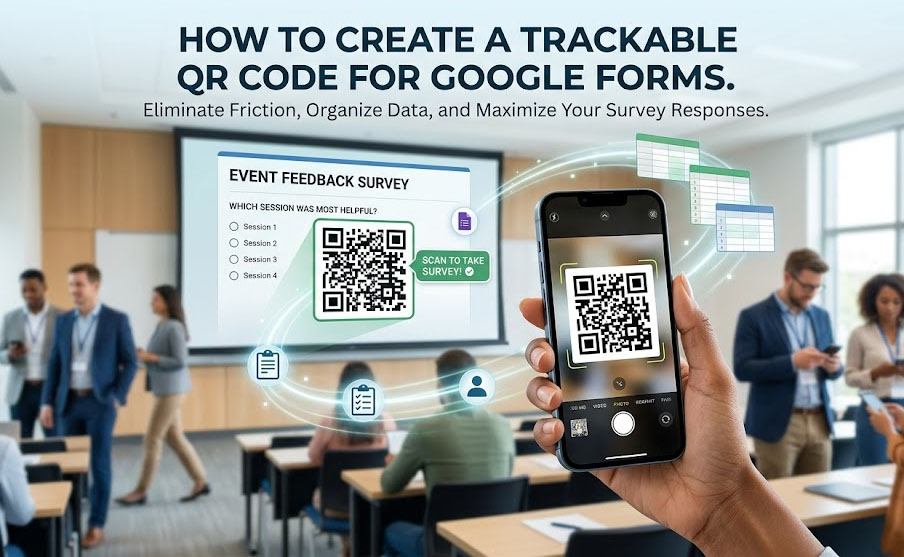
But before you make a rookie mistake and print a code that you can’t track or update, here is exactly how to do it the smart way, including an advanced “hack” that will make you look like a data wizard.
The Rookie Mistake: Using a Static Code for Forms
Most people will copy their Google Form link, drop it into the first free QR generator they find, and print their posters. This creates a Static QR code.
What happens if you want to use those same expensive, glossy posters for your next event in Atlanta, but you need the responses to go to a brand new spreadsheet? If you used a static code, you can’t. The old link is permanently tattooed into the printed code. You have to throw the posters away.
This is why you must use a Dynamic Code. A dynamic code allows you to log into your dashboard next month, edit the QR code, and paste your new Google Form link over the old one. The physical printed posters never have to change.
Step 1: Get the Right Google Form Link
First, make sure your form is ready to receive answers.
- Open your Google Form.
- Click the purple “Send” button in the top right corner.
- Click the Link icon (it looks like a little chain).
- Check the box that says “Shorten URL.”
- Click “Copy.”
Step 2: Generate the Dynamic Code
Now, let’s turn that link into a trackable, editable code.
- Go to a free platform that won’t lock your codes behind a 14-day trial. We built our Dynamic QR Code Generator exactly for this purpose.
- Paste your copied Google Form link into the URL field.
- Customize the design. Pro-tip: Always add a frame that says “Scan to Take Survey” so people know exactly what will happen when they scan it.
- Download the high-resolution image and add it to your presentation slides, table tents, or flyers.
Step 3: The “Pre-Fill Hack” (Advanced Strategy)
Here is where you separate yourself from the amateurs.
Imagine you manage three different retail stores (Downtown, Uptown, and the Suburbs). You want customer feedback for all three. Most people would create three separate Google Forms, which means they have to check three different spreadsheets. That is a nightmare to manage.
Instead, use the Pre-Filled Link Hack:
- Create just ONE Google Form. Add a multiple-choice question at the top that says “Which store did you visit?” (Downtown, Uptown, Suburbs).
- Click the three vertical dots in the top right corner of the Google Form screen and select “Get pre-filled link.”
- The form will open in a new tab. Answer only that first question (e.g., select “Downtown”).
- Click “Get Link” at the bottom, then click “Copy Link.”
- Take that specific link and turn it into a QR code. Label this QR code “Downtown Poster.”
- Repeat the process, but this time select “Uptown.” Generate a new QR code for that link.
The Result: You now have three different QR codes. When a customer at the Downtown store scans their code, the Google Form opens on their phone with the “Downtown” location already selected for them.
All your data flows beautifully into one single spreadsheet, perfectly categorized by location, and the customer had to do less work. It’s a win-win.
Stop Paying for Survey Tools
SurveyMonkey and Typeform will charge you heavy monthly fees to access premium features like QR code generation and response tracking.
By pairing the completely free power of Google Forms with a truly free dynamic routing tool like MakeDynamicQR, you get an enterprise-level feedback system for zero dollars.